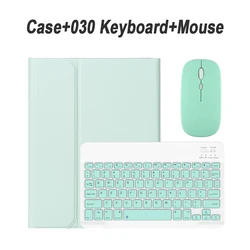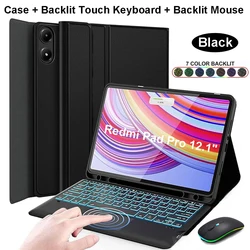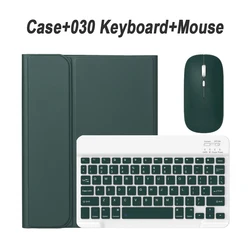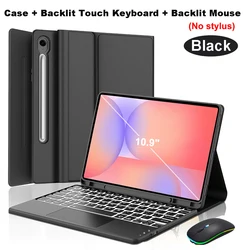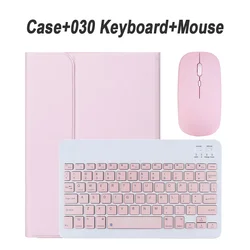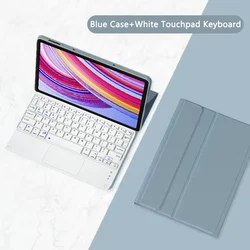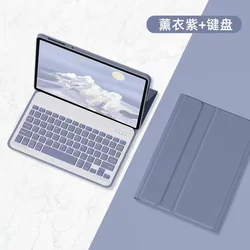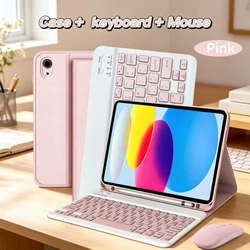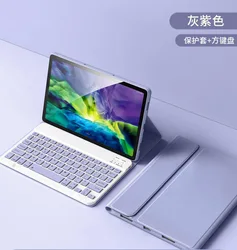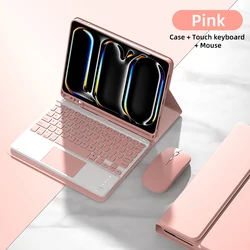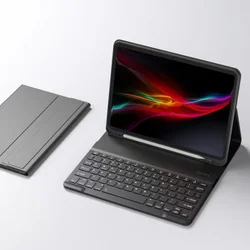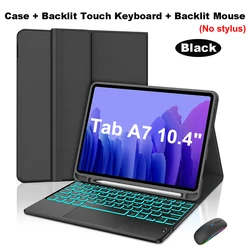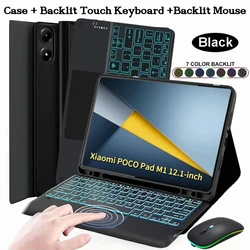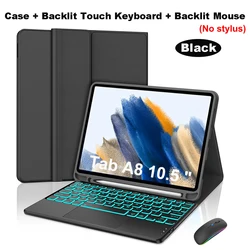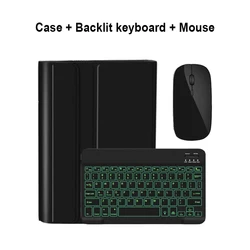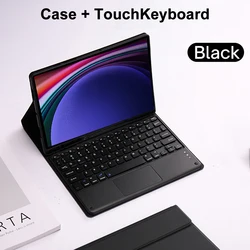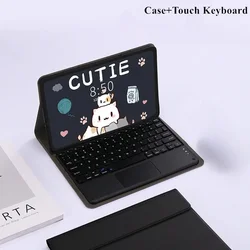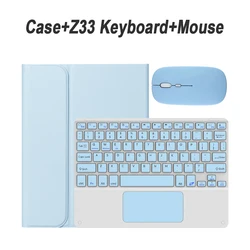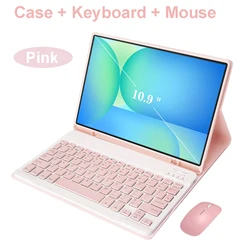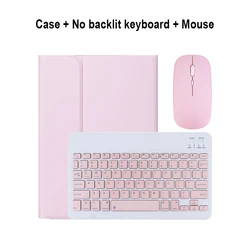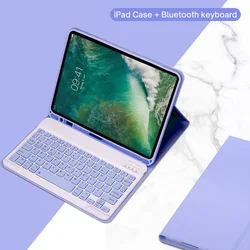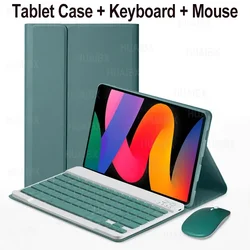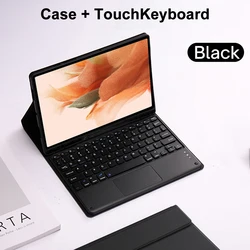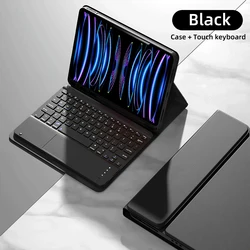
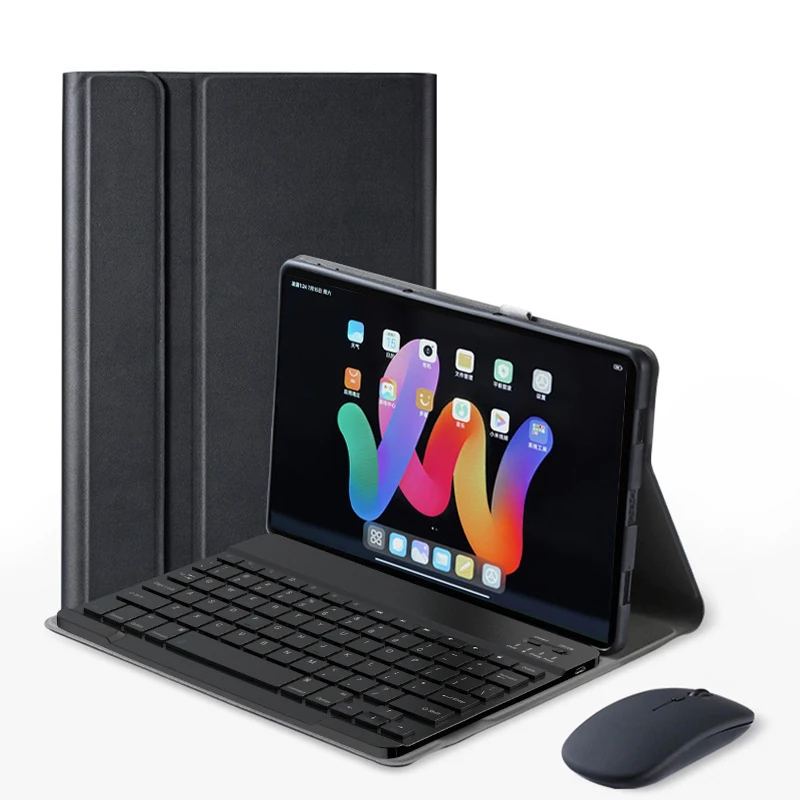
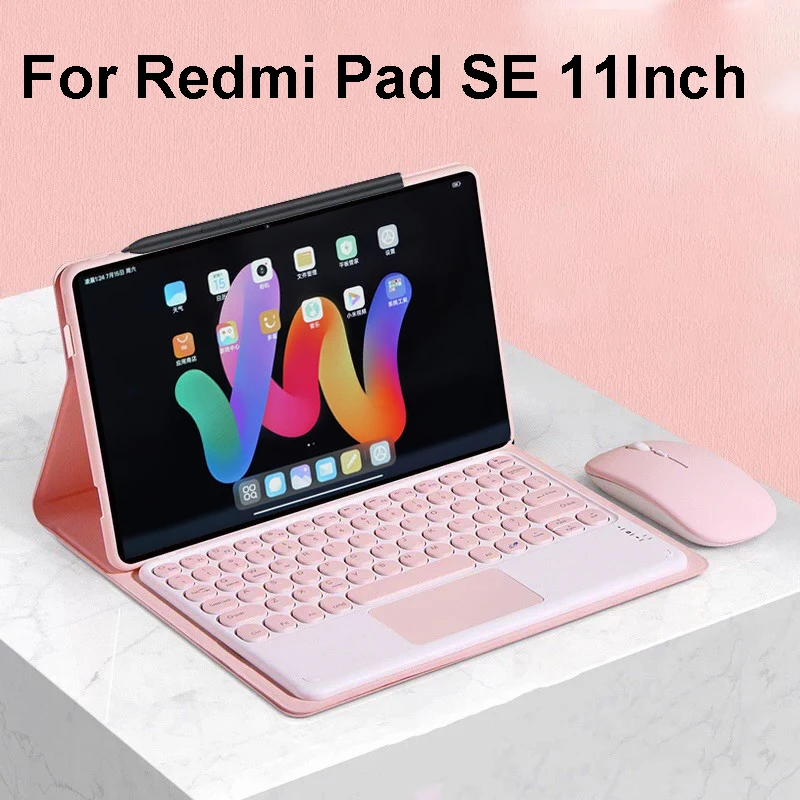



🔴 Case For Xiaomi Redmi Pad SE 11 Inch
🔴 Bluetooth Keyboard Cover for Redmi Pad SE 11 Inch
🔴 Compatibility: Specifically designed for the Xiaomi Redmi Pad SE 11 inch Tablet. Ensure your model matches before purchasing.
Keyboard Options:
English Keyboard: Includes English letters only.
🔧 Multilingual Keyboard: Features both English letters and additional language engravings.
💍 Note: Tablet and stylus are not included in the package. Color variations might occur due to different lighting during photography; refer to the actual product for accurate product color.
✨ Ideal for: Office work, studying, and entertainment. This case provides a comfortable and stylish solution for all your needs.
⚡ Portable Split Keyboard:
🧲 - Strong magnetic absorption ensures stable typing.
📏 - Slim and lightweight design for easy travel.
🛡️ Stable Support & Anti-slip Protection: Durable construction keeps your device secure.
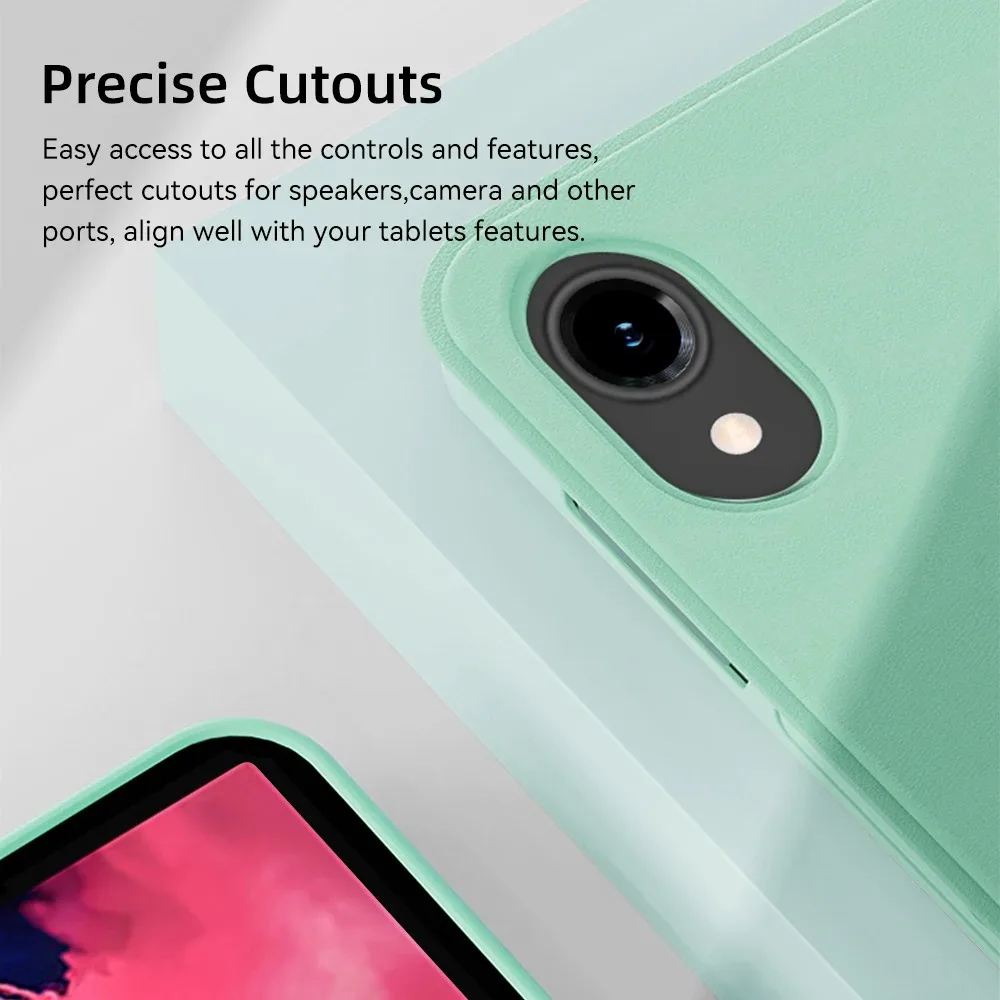
🛠️ Precise Cutouts: Easy access to all controls and features. Perfect alignment for speakers, camera, and other ports.
Super High-Quality Leather: Honeycomb back design for better heat dissipation.
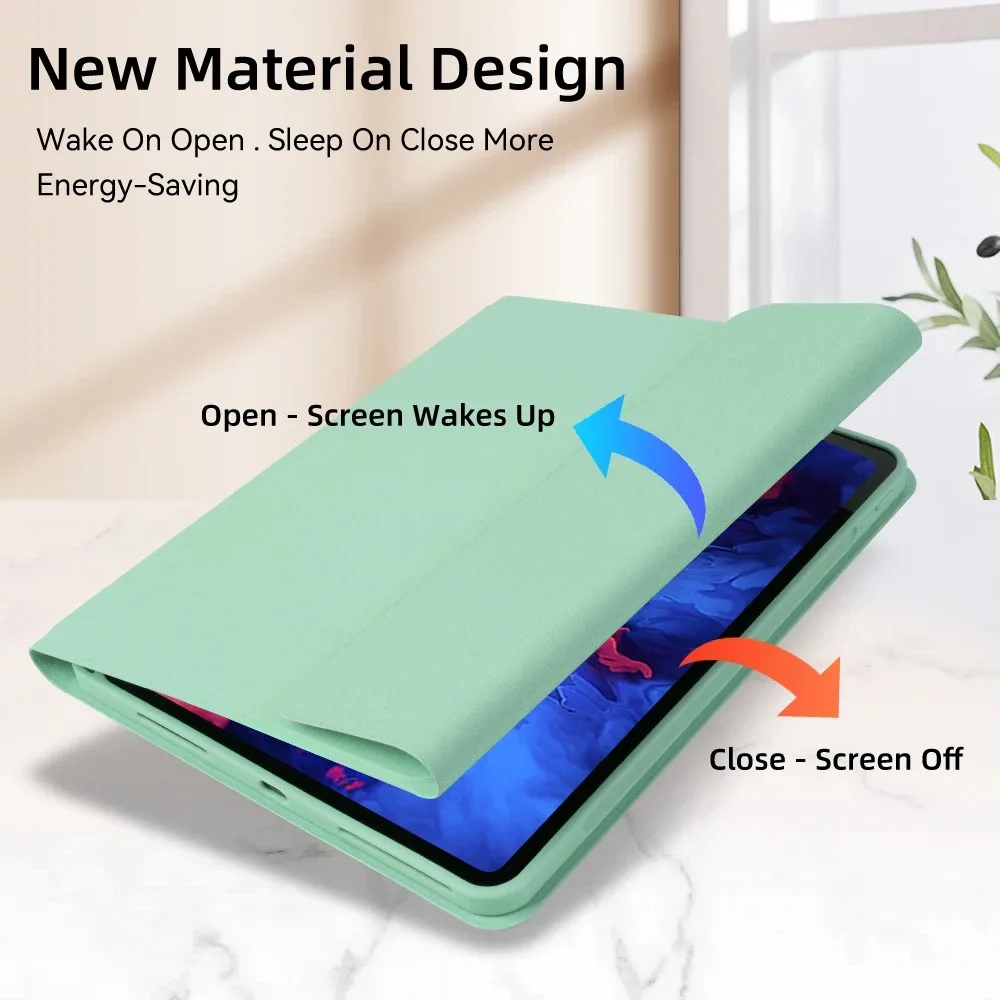
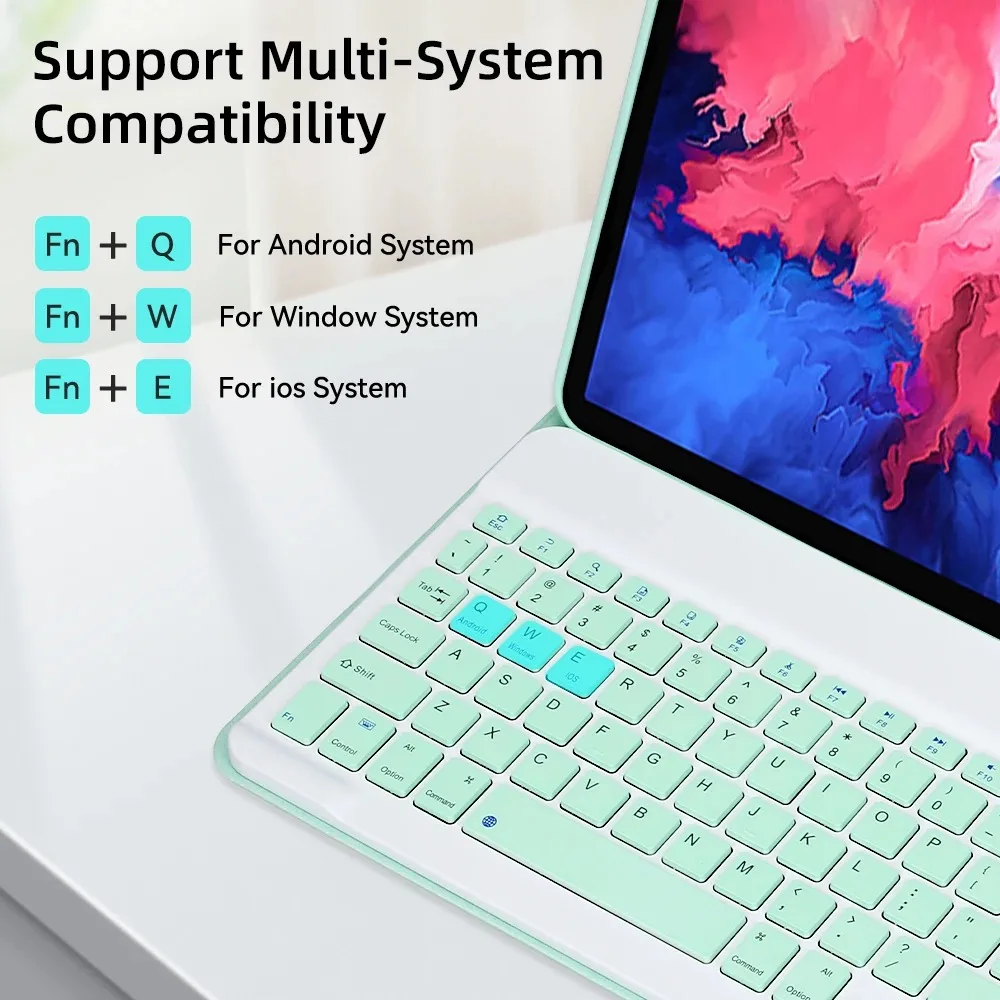
⚡ New Material Design: Energy-saving with wake-on-open and sleep-on-close functionality. Supports multi-system compatibility.
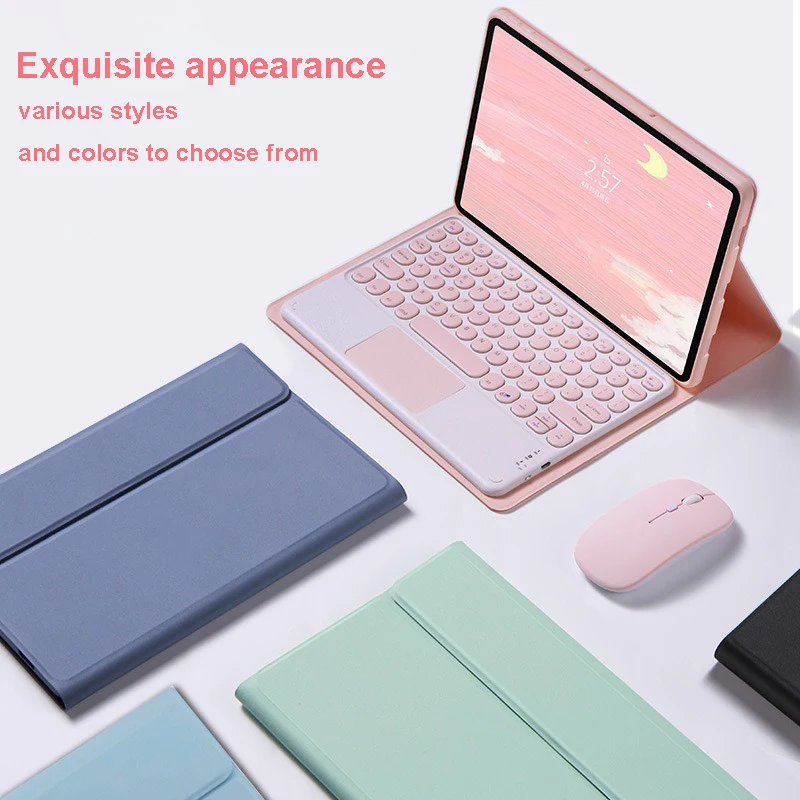
Exquisite Appearance: Various styles and colors to choose from.
How to Connect Keyboard & Mouse:
1. Connect the mouse first, then the keyboard.
2. For the Mouse:
🔵 - Slide the switch to the "Bluetooth" icon.
🔵 - Find "Mouse" in your device’s Bluetooth list.
3. For the Normal Keyboard:
- Slide the switch in the upper right corner to "ON".
🔵 - Press "Connect" and find "Keyboard" in your device’s Bluetooth list.
4. For the Touchpad Keyboard:
- Turn on the keyboard and press Fn+C.
🔵 - Find "Keyboard" in your device’s Bluetooth list.
FAQ:
🔘 Connecting the Mouse for the First Time: Press the left and right buttons and the scroll wheel simultaneously for 3-5 seconds.
🔵 Scroll Direction: The scroll direction differs between USB and Bluetooth connections.
Switching Systems: Use Fn+Q for Android, Fn+W for Windows, Fn+E for IOS. Switch systems before connecting the tablet.
Fixing Messy Keyboard Letters:
🧰 - Ensure the keyboard language is set to English.
🔵 - Disconnect and reconnect the Bluetooth, then select the correct system (Fn+E for IOS).
🧰 - Press L, S, and Z simultaneously to reset the keyboard.
💍 Configuring Input Methods:
For example, on a Samsung tablet:
🧰 - Open "Settings" → "System" → "Language & input" → "Add New Keyboard".
Changing Mouse Scroll Direction:
- Go to "General" → "Trackpad & Mouse" → Disable "Natural Scrolling".
If this item arrives after the delivery date given at checkout, you will be emailed a A$10.00 credit voucher to use on your next order